
A Project serves as the primary container for your Sinch resources, such as apps, phone numbers, and product configurations. Depending on your account setup, you may have the ability to create and manage multiple projects to better organize your business activities.
When you create a Sinch account you are provisioned with a single default project. This default project is usually sufficient for all standard communication needs.
Notes:
- Currently the ability to manually create and manage additional projects within the Sinch Build portal is enabled for specific account configurations, typically those managed by a dedicated Sinch Account Manager.
- We are aiming to enable the option for all accounts to create a limited number of projects and subprojects via self-service in the future.
- If you are self-serve customer who created their account via the Build Dashboard and your Account Manager is listed as onlineteam@sinch.com then you will not be able to create projects or subprojects. In this case if you need to create a project or subproject please reach out to onlineteam@sinch.com who can discuss adding a project on your behalf.
To create a new project, take the following steps:
- Log in to the Sinch Build Dashboard. Click the Project menu at the top left of the screen:
Click View all projects.
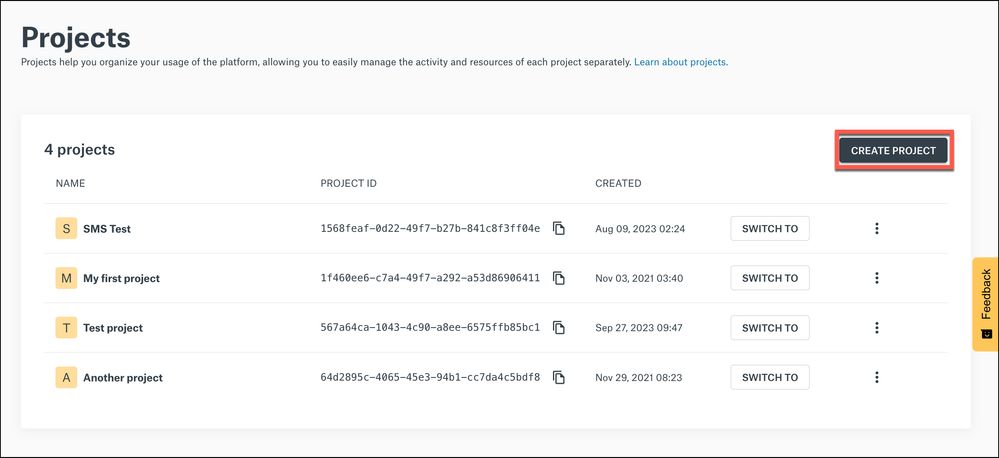
- The Projects page is displayed:
Click CREATE PROJECT.

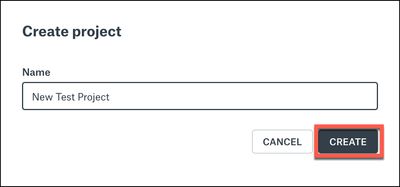
- The Create project dialog is displayed:
Enter a name for your project in the Name field. Click CREATE.
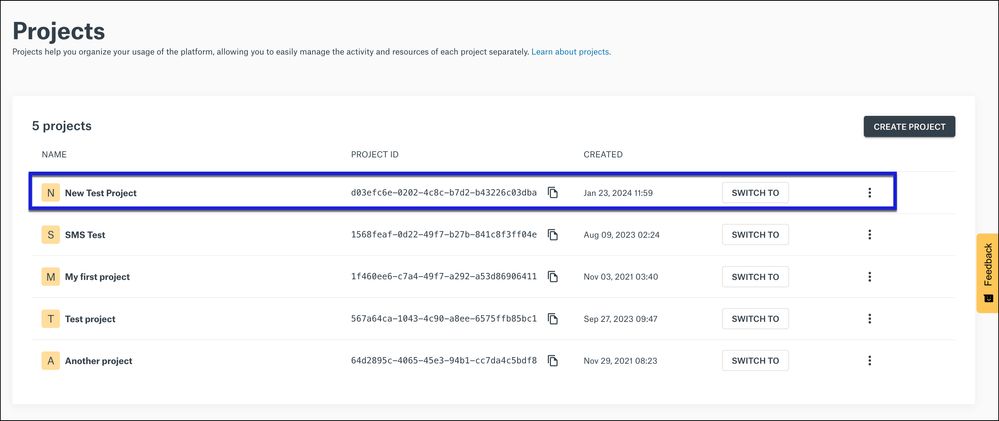
The new project is created and displayed at the top of the list on the Projects page:
Note: After creating a new project, you must create a corresponding SMS channel if you want to send SMS messages using that project.
Automation Notice
Please note that the creation of parent projects is a manual process that must be performed within the Build portal. Unlike subprojects, there is currently no API available for the automated creation or management of parent projects.
Comments
0 comments
Please sign in to leave a comment.