
A Subproject is an additional organizational layer that sits inside a parent project within the Sinch Account Model (which consists of Accounts, Projects, and Subprojects).
You can access subprojects from the Projects top menu or from the Projects page in the Sinch Build Dashboard:
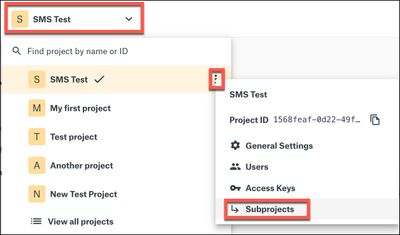
- Log in to the Sinch Build Dashboard. Click the Projects menu in the top bar:
A list of your projects is displayed. If you have multiple projects then you can search for your project or the project ID in the search field at the top of the project list.
- Your current project is highlighted (in yellow and with a tick mark). If you click the options icon (three vertical dots) to the right of the current project name, you can see the details for the selected project. Click Subprojects.
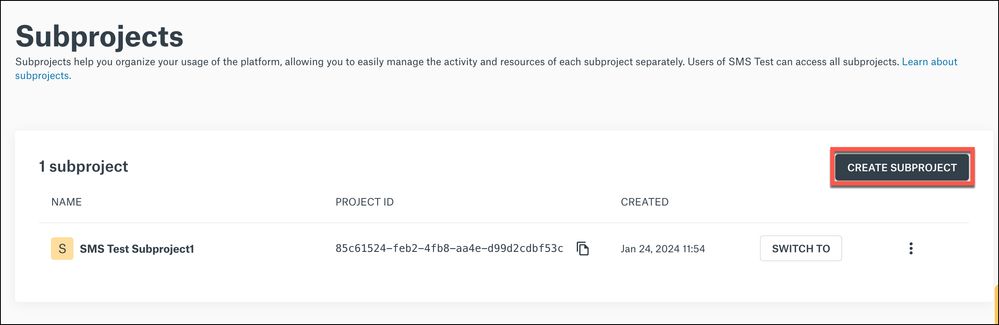
- The Subprojects page is displayed:
This page shows you a list of your subprojects (for the selected project) along with the Project ID and the date the subproject was created.
Creating subprojects
Important Note: Project or subproject creation is not enabled by default for all customers. If this functionality is unavailable to you or you are unable to view or manage your projects and subprojects, please reach out to your Sinch Account Manager or contact our Online Team.
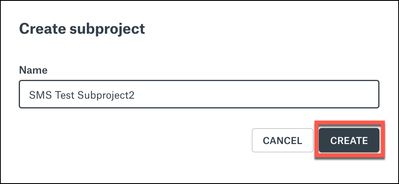
To create a new subproject click CREATE SUBPROJECT. The Create subproject dialog is displayed:
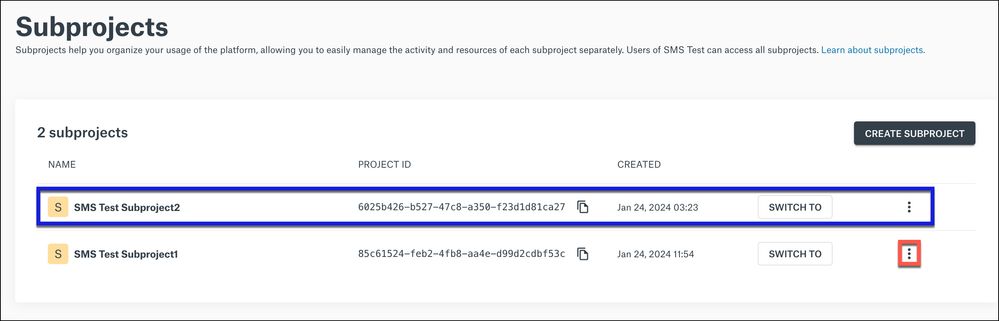
Enter a name for your new subproject in the Name field. Click CREATE. The new subproject is created and displayed at the top of the list on the Subprojects page:
Note: After creating a new subproject, you must create a corresponding SMS channel if you want to send SMS messages using that subproject.
Viewing subproject details
To view the details for a subproject click the options icon (three vertical dots highlight in red above) to the right of the current project name. The subproject details are displayed:
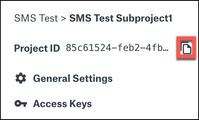
The project details panel contains the following information and options:
| Name | Displays the subproject name in the format: {Parent Project Name} > {Subproject Name} |
| Project ID | Displays the Project ID. To copy the Project ID to your clipboard, click the copy icon . . |
| General Settings | Configure the subproject settings including changing the subproject name. |
| Access keys | Shows you the access keys for your selected subproject. A unique API key can be generated for each subproject in the customer dashboard, but it is also possible to use the Access Key of the parent project to access this subproject's resources, since access inherits downward within the project tree. Learn more about access keys and how Sinch uses them. |
Comments
0 comments
Please sign in to leave a comment.