
A security key uses a hardware device (like a YubiKey) or your platform's built-in authenticator (like Touch ID or Windows Hello) to verify your identity. Security keys follow the FIDO2/WebAuthn standard.
To set up a security key, take the following steps:
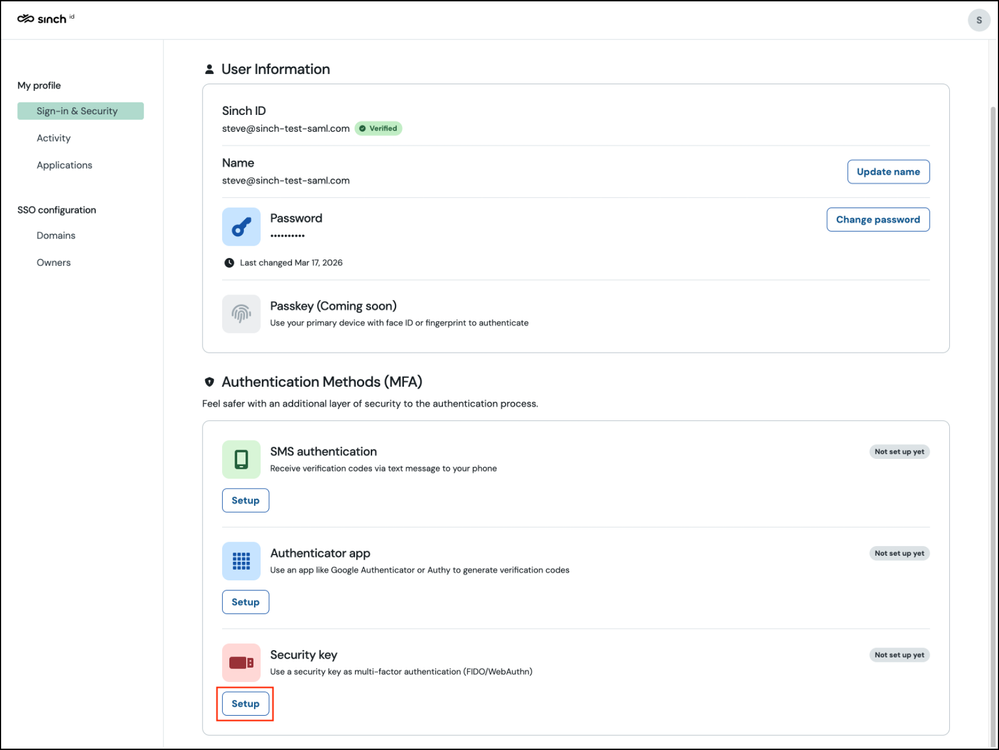
Sign in to Sinch ID and go to Sign-in & Security:
In the Authentication Methods (MFA) section, under Security key, click Setup.
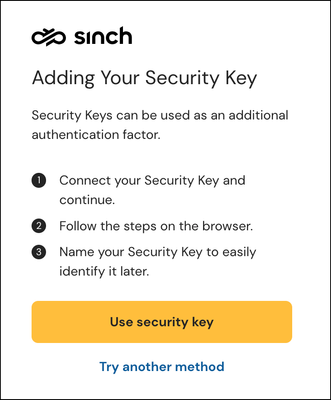
- An intro screen explains what security keys are:
Click Use security key to continue.
- Your browser shows a WebAuthn dialog. Follow the prompts to insert and tap your hardware key, or use your platform authenticator (Touch ID, Windows Hello, etc.).
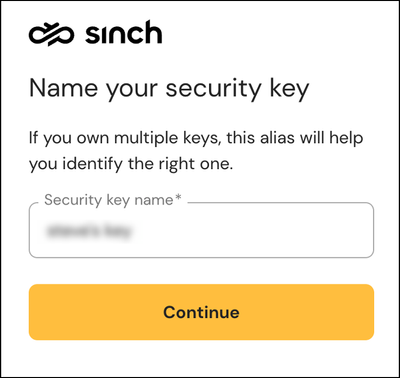
Give your security key a name so you can identify it later:
Click Continue.
A confirmation message is displayed informing you that the security key was registered.
- If this is your first MFA method, Sinch ID shows a recovery code. Copy or write it down and store it somewhere safe.
Note: The recovery code only appears when you enrol your first MFA method. If you already have another method enabled, this step is skipped.
A confirmation message is displayed informing you that the setup is complete. You can safely close this tab.
Comments
0 comments
Please sign in to leave a comment.