
This guide will walk you through the simple process of activating your trial for Elastic SIP Trunking (EST), understanding its features and limitations, and how to request an upgrade to a full production account.
Activating your trial
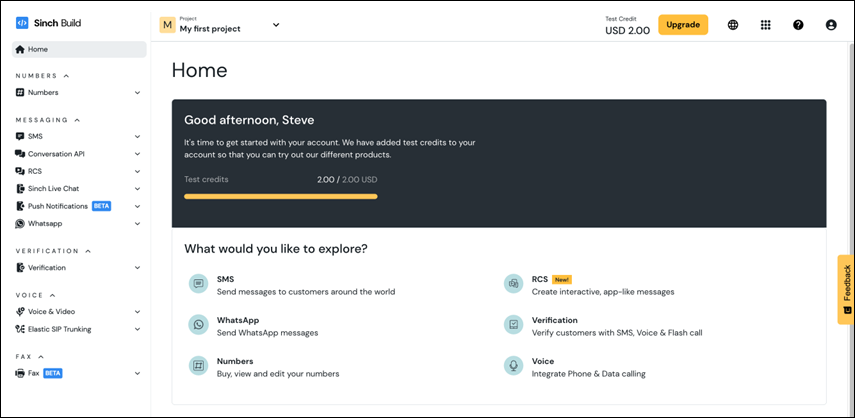
- Log in to your Sinch account. From the main dashboard, you'll see an overview of the products available to you. Note, if you’ve just signed up for an account, you will have some test credits you can use for Elastic SIP and other services.
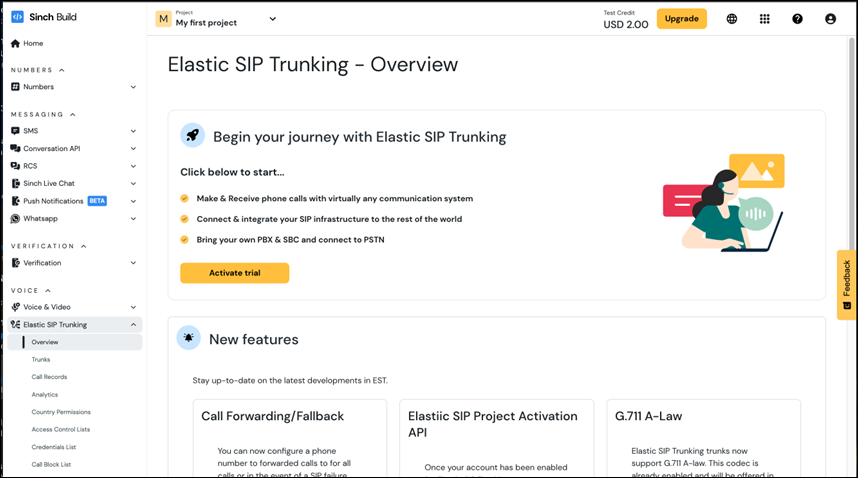
- Navigate to Elastic SIP Trunking. On the left-hand navigation menu, expand the Voice section and click on Elastic SIP Trunking.
-
Start your journey. On the overview page, click the Activate trial button to begin.
-
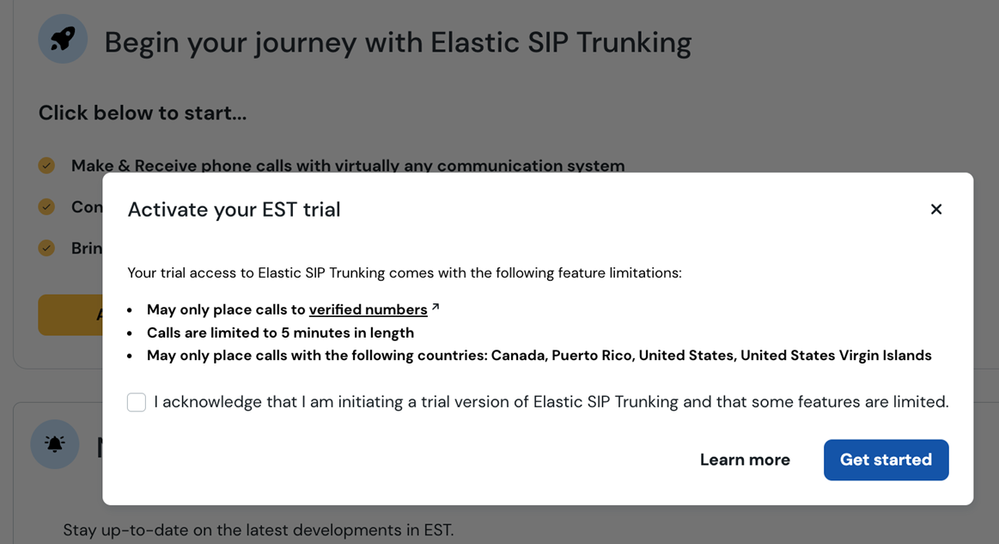
Review the trial limitations. A modal window will appear outlining the limitations of the trial account. You’ll need to acknowledge these terms before proceeding.
Your trial access to Elastic SIP Trunking comes with the following feature limitations:- May only place calls to verified numbers.
- May only receive inbound calls from verified numbers.
- Calls are limited to 5 minutes in length.
- May only place calls with the following countries: Canada, Puerto Rico, United States, United States Virgin Islands.
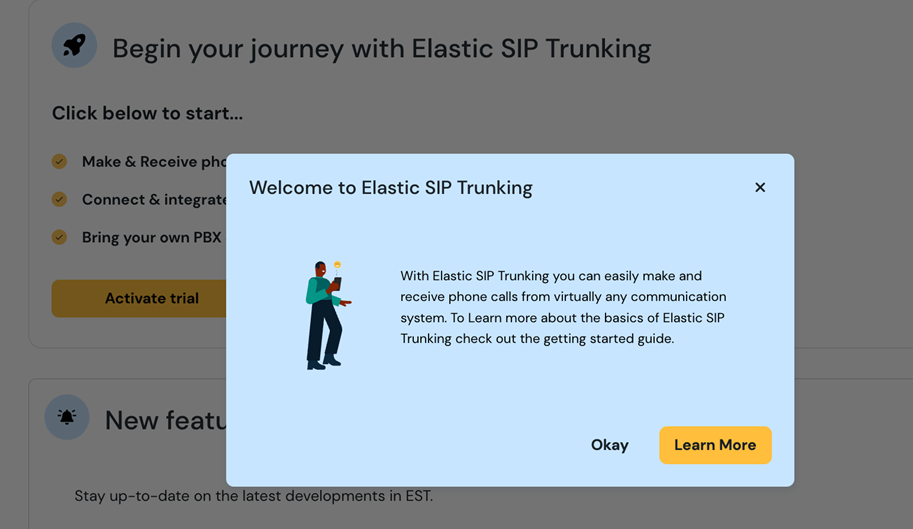
After you accept, a welcome message is displayed:
Navigating your trial account
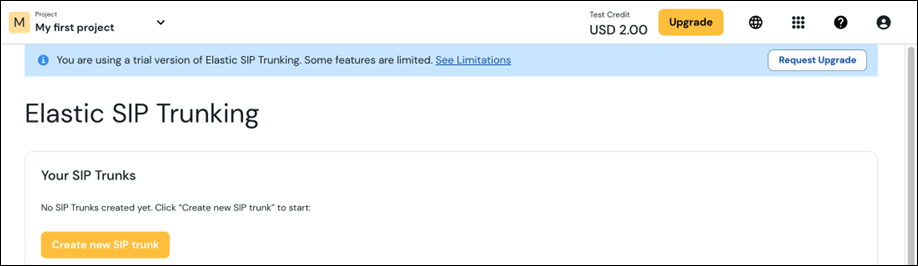
Once your trial is active, you'll notice a banner at the top of the Elastic SIP Trunking pages indicating that you are using a trial version (and an option to request an upgrade).
Verified numbers are key
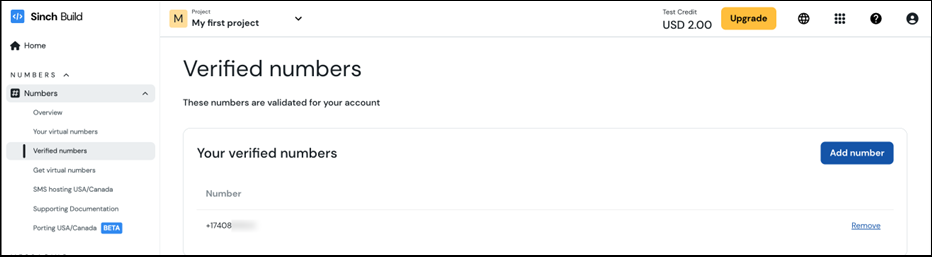
During the trial, you can only make calls to numbers that you have verified for your account. This is an important security measure.
- You can manage your verified numbers by navigating to Numbers > Verified numbers.
- For more information on how to add a verified number, please see our guide: How can I add a verified number to my account?
Build trunks
With your verified number you can create new SIP trunk(s) and start making calls. See more information on setting up Elastic SIP in the Getting Started with Elastic SIP Trunking article. The cost of each call will be deducted from your test credits.
Obtaining your free test number
Navigate to the Numbers section, and you will be presented with a banner which will assist you in obtaining your free test number.

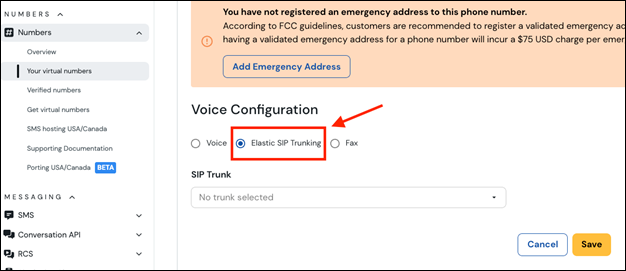
Once you have obtained your test number, you will need to move it over to your Elastic SIP Trunking Trial to use it with the service. To do this, navigate to Your Virtual Numbers underneath the Numbers section, and change the Voice Configuration from “Voice” to “Elastic SIP Trunking”.
Transition to a Full Production Account
Ready to unlock the full potential of Elastic SIP Trunking? Here’s how to apply for a full production account.
Our Elastic SIP Trunking service is currently a sales-contracted offering designed for business use. The application process is in place to ensure we can meet your needs and establish a smooth, long-term partnership.
- Begin Your Application: Click the "Apply for Production" button in the banner at the top of any Elastic SIP Trunking page.
- Provide Your Business Details: A form will appear asking for information about your intended use of the service. This information is the first step in our sales process, which will also include standard credit and KYC (Know Your Customer) checks.
- Connect with Sales: Once submitted, our sales team will review your application and reach out to discuss your needs and guide you through the contracting process. Be on the lookout for an email from our team.
A Note on Billing:
For now, EST customers must be billed through a North American entity. While our sales contracts are written in USD, our billing team can often accommodate payments in other currencies.
We hope this guide helps you get started with your Elastic SIP Trunking trial. If you have any questions, feel free to explore the rest of our community articles or reach out to support.
Comments
0 comments
Please sign in to leave a comment.