
To send Batch SMS using Connect, take the following steps:
- Launch Connect from your Sinch SMS Portal.
- Expand the Batch SMS menu item by clicking on the downward arrow to the right of Batch SMS.
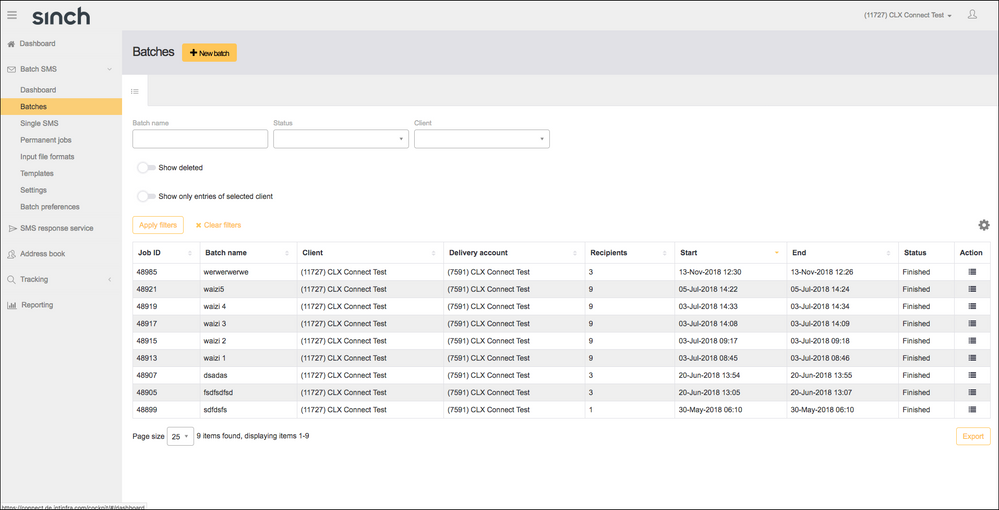
- Click Batches.
- Click the New Batch button to launch the wizard:
- Complete the required fields, you can upload numbers from a file, or select a list from your address book. Click Next and then Next again when it’s confirmed that your address book / file upload has been successful.
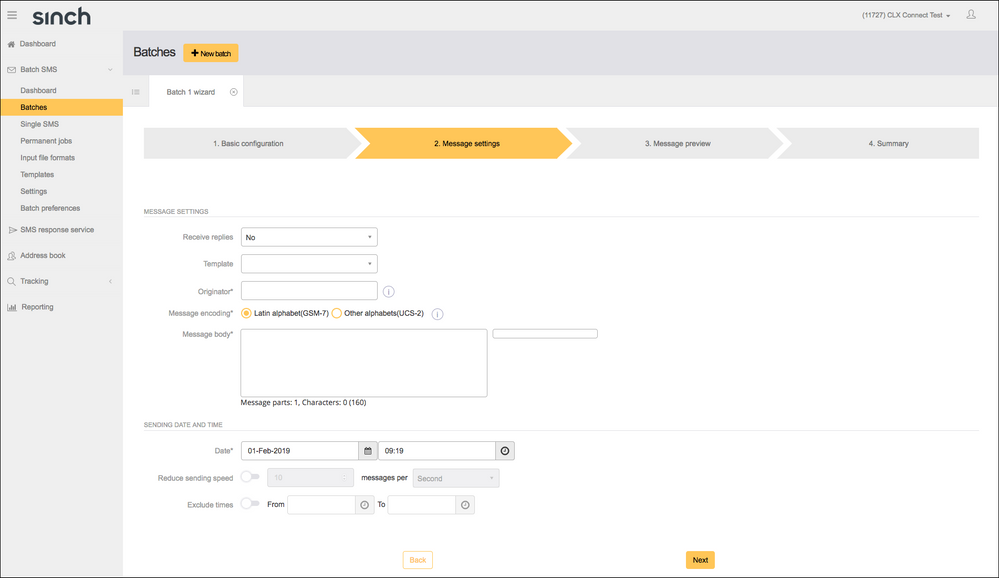
- Compose your message: you can use a Template, set an Originator (who the sent message appears from), use Merge Fields if uploaded, and set a time and date if you want to schedule the message to be sent later:
Click Next.
- Preview your message to ensure you are happy with it, and that there are no spelling or formatting mistakes. You can send a single test message to check this by entering a number to see how it will appear on the handset. Click Next.
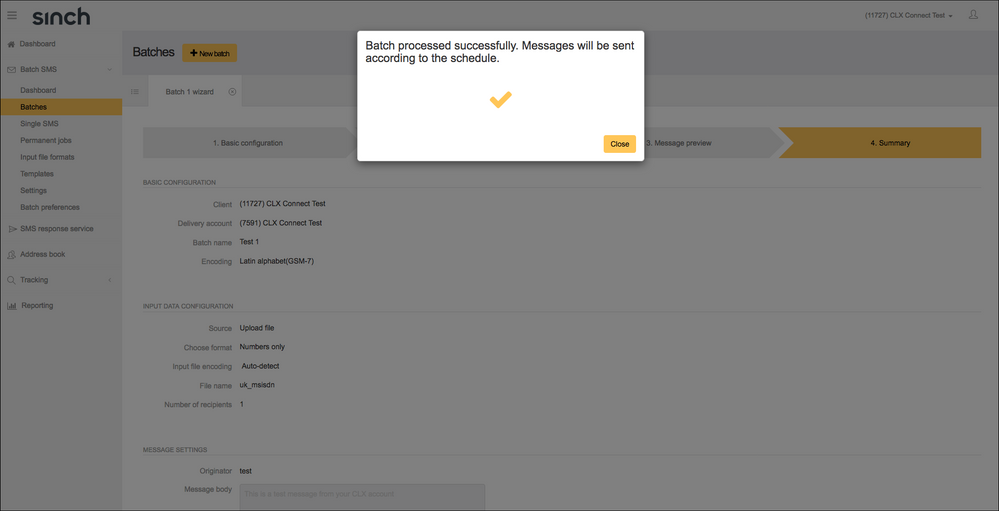
- Check all the details are correct, tick the acknowledgement box then click Complete to send or schedule your batch:
Comments
0 comments
Please sign in to leave a comment.