
Your chatbot canvas is the part of your bot builder that like the blueprint of your bot. Think of it as a visual tool that helps you plan, design, and structure your flows of conversation.
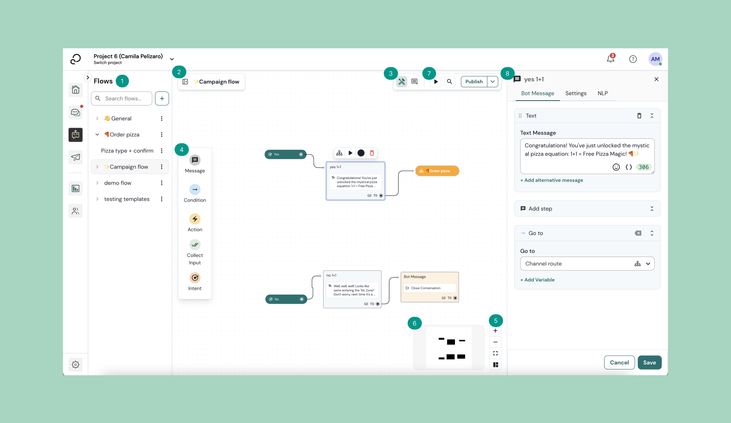
1. Flows sidebar
Organize and manage your conversational flows under the Flows tab.
2. Navigation
Stay informed about your current flow location with a clear visual indicator. Additionally, seamlessly switch between subflows and main flows for smooth navigation.
3. Toolbar
The toolbar consists of:
- Build mode: During the editing process of your flow, you will have the 'building mode' enabled. When you're in this mode, you can make new blocks and steps.
- Comment mode: By enabling comment mode, you’d be able to leave comments on the canvas.
- Search: Search for specific blocks by clicking the search icon and typing the name the block that you're looking for.
-
Publish button: click here to publish the latest version of your chatbot.
4. Blocks
Build your flows by dragging and dropping new blocks to your canvas.
5. View option
The view commands give you several options to navigate your canvas.
6. Minimap
Click and drag on the minimap to easily navigate the canvas without losing your place
7. Test your bot
To test how your bot will interact with end-customers, test your bot here.
8. Block editor
Each block's content is easily customizable. Click on it to open the intuitive block editor located on the right-hand side of the screen.
Comments
0 comments
Please sign in to leave a comment.