
Note: This article is intended for customers who have access to the following options in the Campaigns menu: All campaigns, Analytics and Settings. If in the campaigns menu you see Newsletter and Settings options, check out this other article.
To create a campaign from existing templates, you need to first create a WhatsApp message template. WhatsApp message templates allow business to use pre-created and approved templates to send structured messages to customer who have agreed to receive messages.
To create a campaign from existing templates:
- Go to Campaigns > All campaigns.
- Click the Create button.
if it's the first time you're creating a campaign the Start a campaign button will appear for you
The Create a new campaign view opens.
- In the Setup step, do the following:
- Give your campaign a name
- Define your audience by either selecting from an existing audience list or importing your contacts from a CSV file
- Select one channel to target your audience.
- Click Next button. The Design your message view opens.
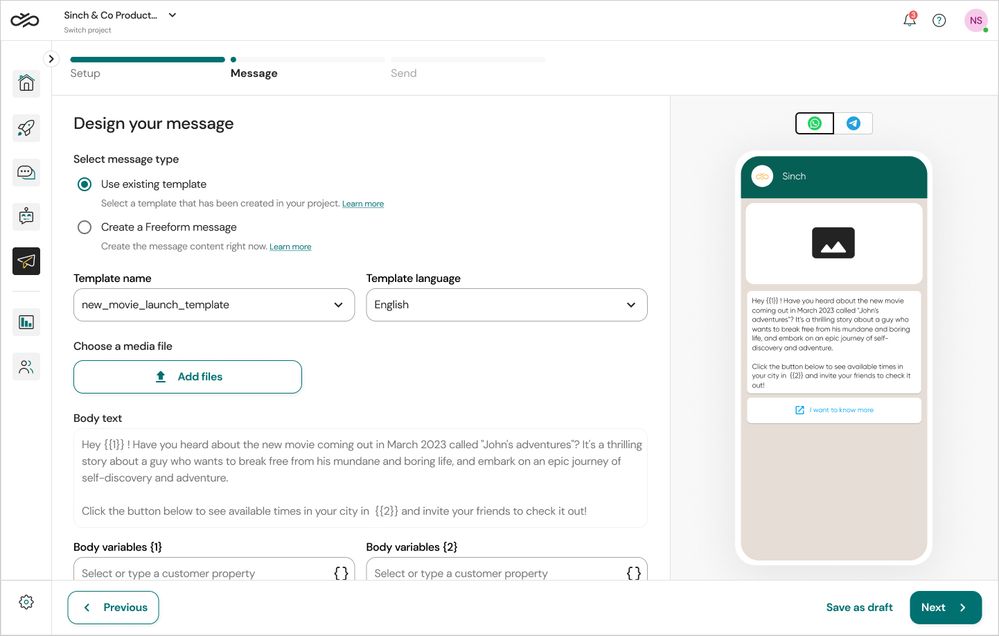
- In the Message step, do the following:
- Select Use existing template
- Continue by selecting an existing template and language, or Create a template.
- A Body textarea will be pre-filled with the selected template's approved message.
- To personalise this message to your customers, replace all Body variables with customer properties from your selected audience or with the columns from your CSV file imported.
If the selected template has a media, you need to upload one clicking on Add files button
- Review your message from the previewer.
- Click Next button. The Review your campaign before sending view opens.

Comments
0 comments
Please sign in to leave a comment.