
In your Sinch Engage Classic chatbot, you can ask for input of your customers and by adding Collect input blocks to your conversation.
To add a Collect input block:
- Let's say we created a match entity for a customer ID, called @customer_ID.
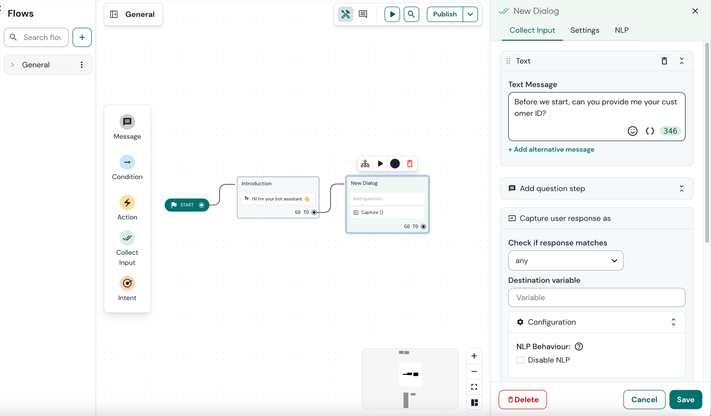
- To add Collect input, you can either:
- drag and drop a Collect input block from the left panel
- or start by dragging and dropping the connection arrow, then select Collect input
- The Collect input block opens. Click on Add step.
- Select Text.
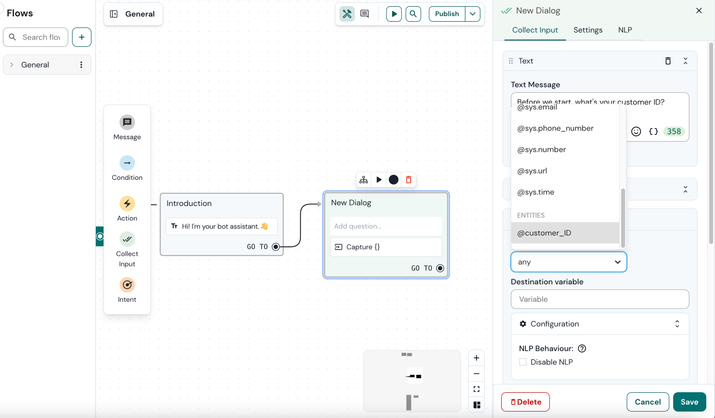
5. Select the created entity @customer_ID under Check if response matches dropdown.
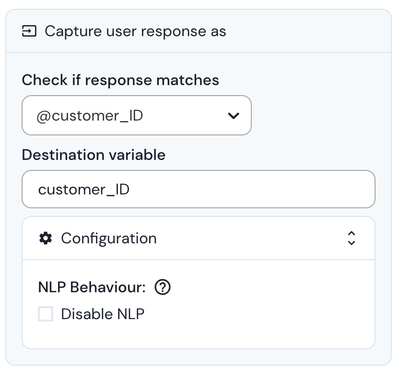
6. Provide the name of the destination variable, which is where the value will be saved.
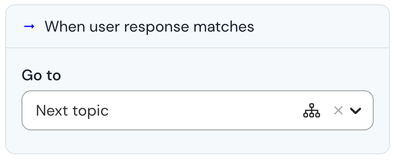
7. Create a new block that will be triggered when the user's input is validated. In this example, we will guide them to the next block where the bot will provide selectable options.
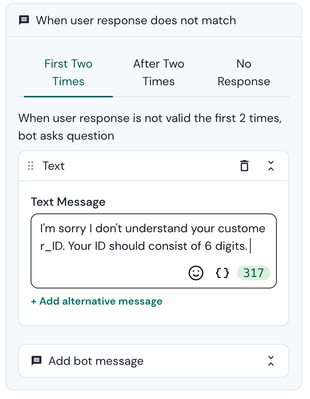
8. Next, create a text message in case the customer's response does not match. The bot will ask for the customer_id, which should consist of 6 numbers.
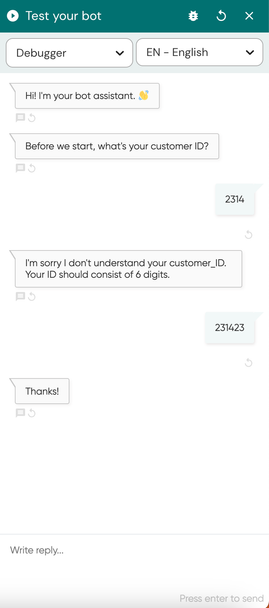
9. Save your changes and test your bot by clicking the Play button. Make sure that you have already trained your bot before testing it. Try it out: if a customer makes a mistake, the bot will redirect them to the correct answer until they provide the right customer ID.
Comments
0 comments
Please sign in to leave a comment.